

Find your way around
The sidebar, search, light and dark mode, your account menu, and the tabs in the phone app.
On this page
After you sign in, you land on Dashboard. Everything else is one click away in the sidebar on the left.
The sidebar
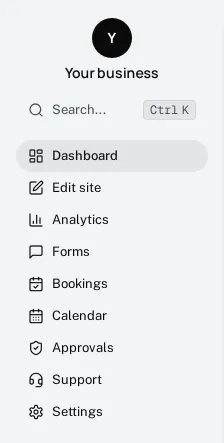
Your business name sits at the top, then search, then the parts of the portal you can use: Dashboard, Edit site, Analytics, Forms, Approvals, Support and Settings, plus Job applications, Bookings, Calendar, Newsletter or Ads if your plan includes them.
To make more room on a smaller screen, select Toggle Sidebar (the panel button at the top left). The sidebar shrinks to icons; select it again to bring the labels back.
Search
Select Search… in the sidebar, or press Ctrl K (⌘ K on a Mac), and start typing. Search finds pages, settings and common actions, and it understands everyday words: typing “users” finds Settings, then Team. Use the arrow keys and Enter, or select a result.
Light and dark mode
Select Theme (the sun or moon button at the top right) and choose Light, Dark or System. System follows your computer or phone setting.
Your account menu
Select your name at the bottom of the sidebar to open your account menu:
- Account: your email, password and signed-in devices
- Settings: your business’s settings
- Dark mode: switch between light and dark
- Log out
Getting help
Select Help (the question-mark button at the top right) to see the support requests you’ve sent and their status. To ask for something new (a change to your website, a problem, or a question), go to Support. If you can’t sign in at all, email support@shorebirdmanagement.com.